
Cash Tracker
The Cash Tracker is used to record cash-game sessions, including the site, game, stakes, table size, buy-ins, cash-outs, and session results.
The Cash Tracker has three main areas:
- Play — start and manage active cash sessions.
- Sessions — review completed sessions and individual table results.
- Analytics — analyze cash-game results using filters.
This section covers setting up cash games and recording sessions.
Setting Up Cash Games
Open Cash Tracker → Setup.
Cash Setup has two parts:
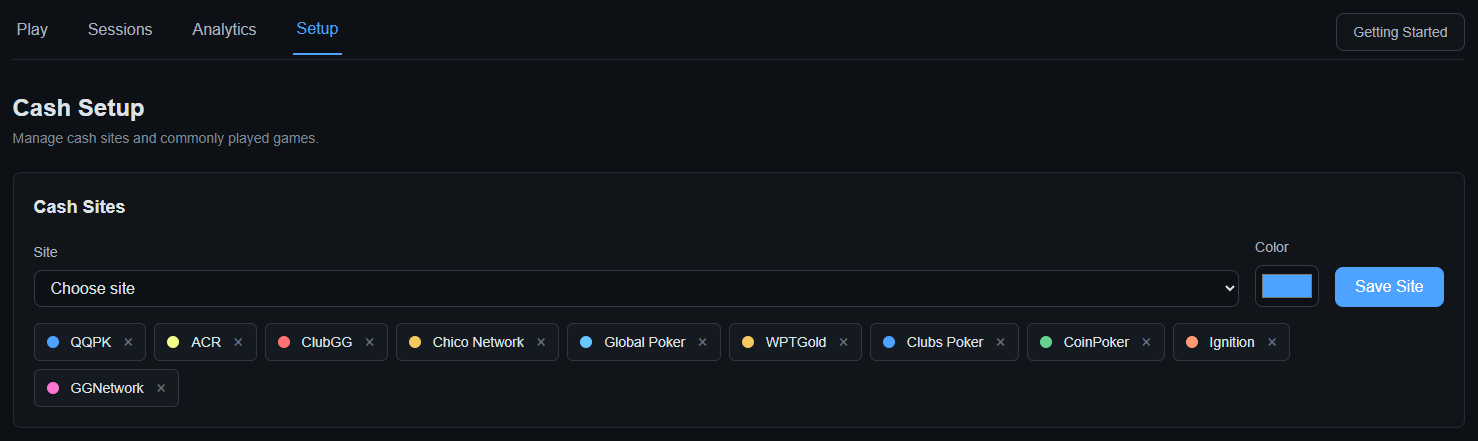
- Cash Sites — add the poker sites where you play cash games.
- Add Cash Game — create the standard game definitions you will use when starting sessions.
Adding a Cash Site
In Cash Sites, choose a site from the site selector, choose its color, and select Save Site.
The saved sites appear as chips below the selector. Use the × on a site chip to remove that site from Cash Setup.
Adding a Cash Game
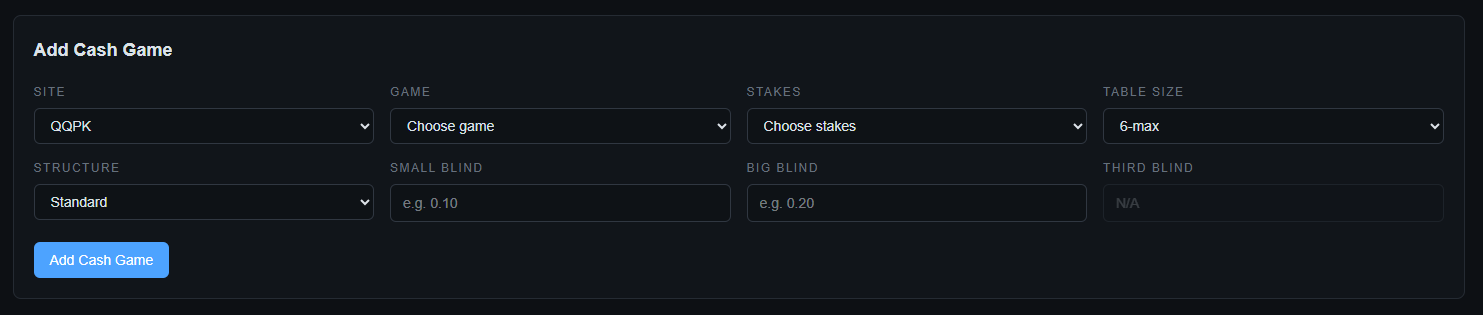
In Add Cash Game, choose the:
- Site
- Game
- Stakes
- Table Size
- Structure
For standard games, enter the Small Blind and Big Blind.
For games using a third blind, the Third Blind field is available when applicable.
Select Add Cash Game to save the game definition.
Stakes and Blinds
The Stakes selection identifies the game stakes used for the saved game.
The blind fields record the actual blind structure:
- Small Blind
- Big Blind
- Third Blind, when applicable
Standard vs. Three-Blind Games
The Structure setting distinguishes the blind structure of the game.
For a standard game, enter the small and big blinds.
When the game uses a third blind, select the appropriate structure and enter the Third Blind amount.
The third-blind field is disabled when it does not apply.
Table Size
Select the normal table size for the saved cash game, such as 6-max.
Table size is also recorded with individual cash tables and can be used later when analyzing results.
Starting a Cash Session
Open Cash Tracker → Play.
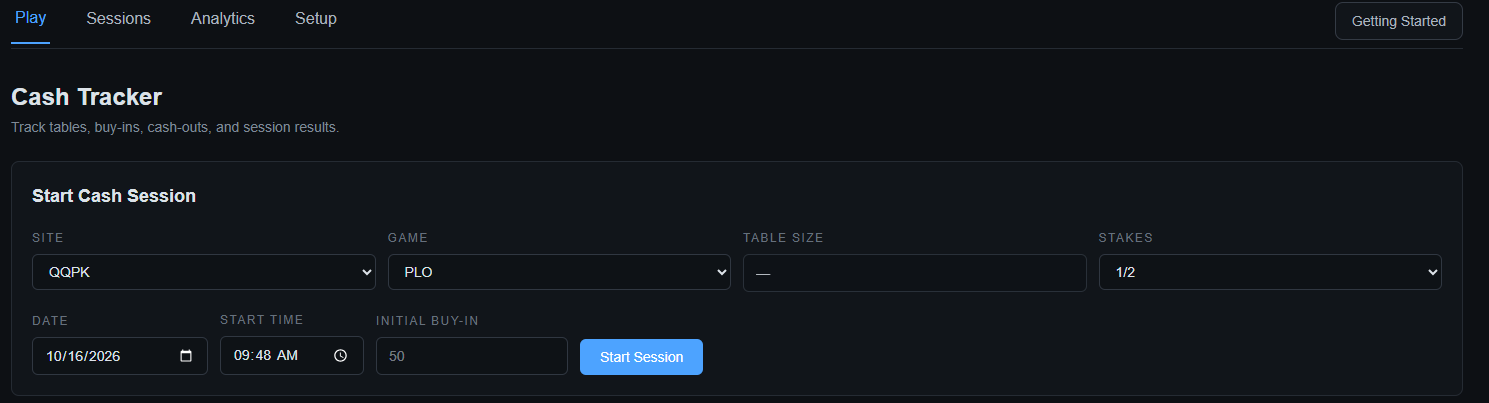
The Start Cash Session form records the basic information for the session:
- Site
- Game
- Table Size
- Stakes
- Date
- Start Time
- Initial Buy-In
Select Start Session to begin.
Managing an Active Session
Once a session is started, the active session appears on the Play page.
The session shows the site, game, stakes, start time, current money in and out, net result, and number of open tables.
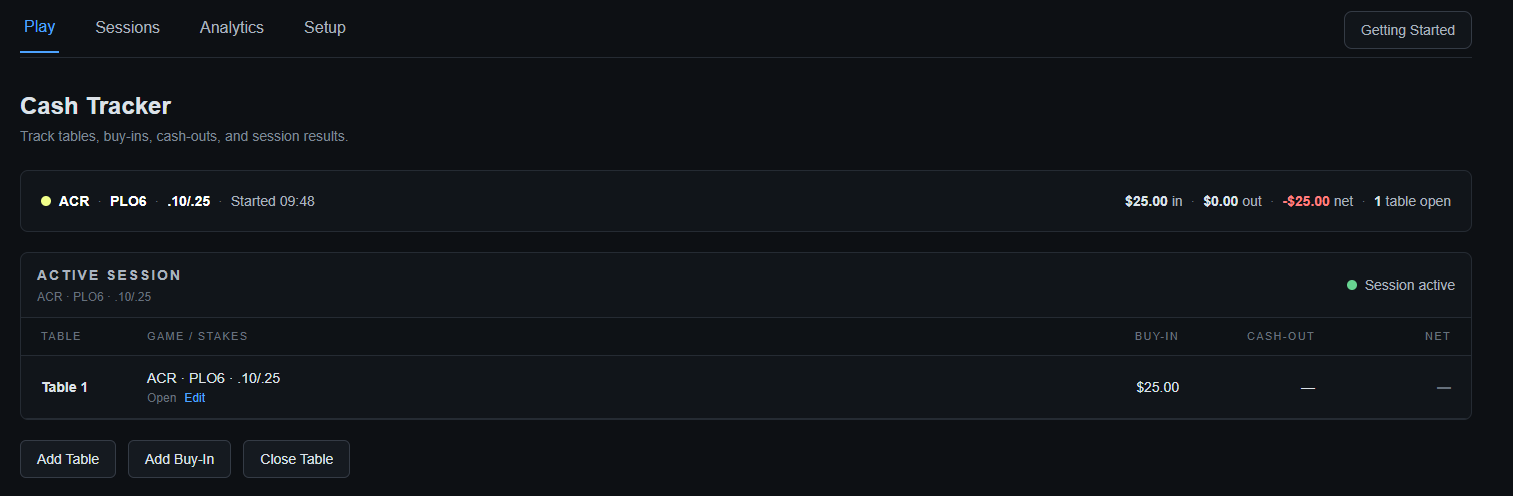
A session can contain multiple tables. Use:
- Add Table — add another table to the session.
- Add Buy-In — record additional money put into the session.
- Close Table — finish the current table.
Editing an Active Table
Use Edit on an open table to correct its saved details.
The active-table editor allows you to change the:
- Site
- Game
- Stakes
- Start
- Buy-In
- Hands Played
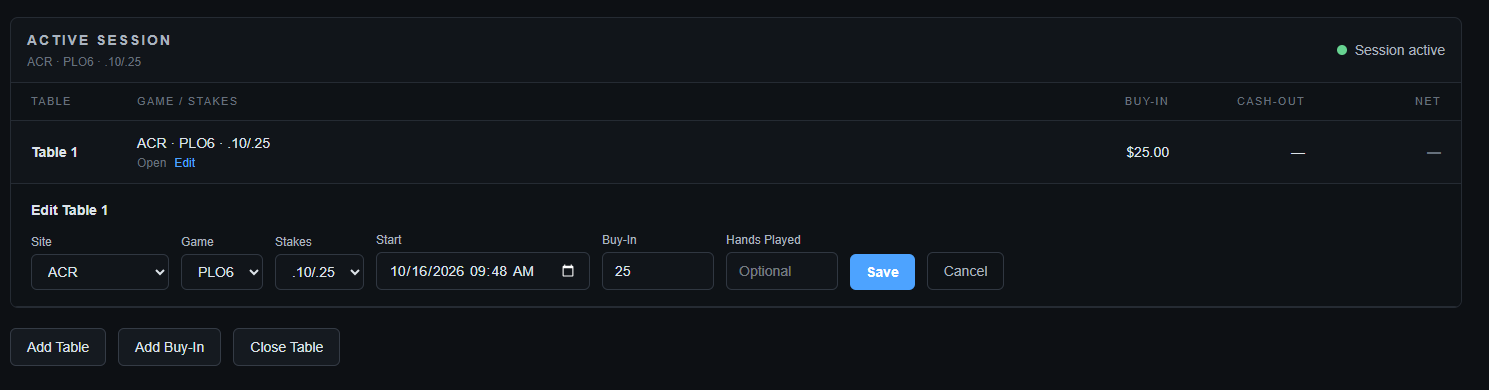
Select Save to keep the changes or Cancel to leave the table unchanged.
Ending a Session
Close the tables you are finished playing. The table's cash-out is recorded when the table is closed, and the session result is calculated from the money put in and cashed out.
When the session is complete, it becomes available in Cash Tracker → Sessions.
Cash Sessions
The Sessions page provides a history of completed cash sessions and their results.
The summary cards show overall:
- Profit
- Hours
- Sessions
- $/Hour
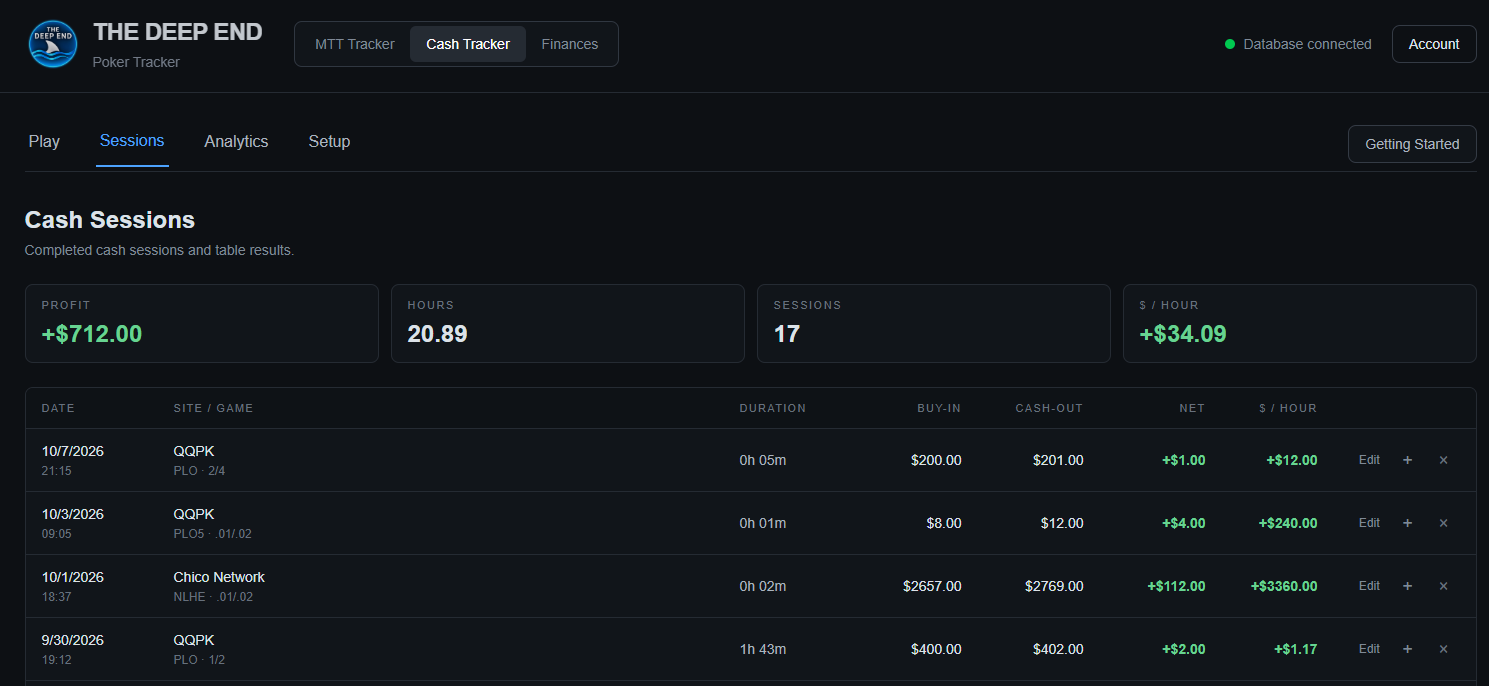
Each session row shows the date, site/game, duration, buy-in, cash-out, net result, and $/hour.
Expanding a Session
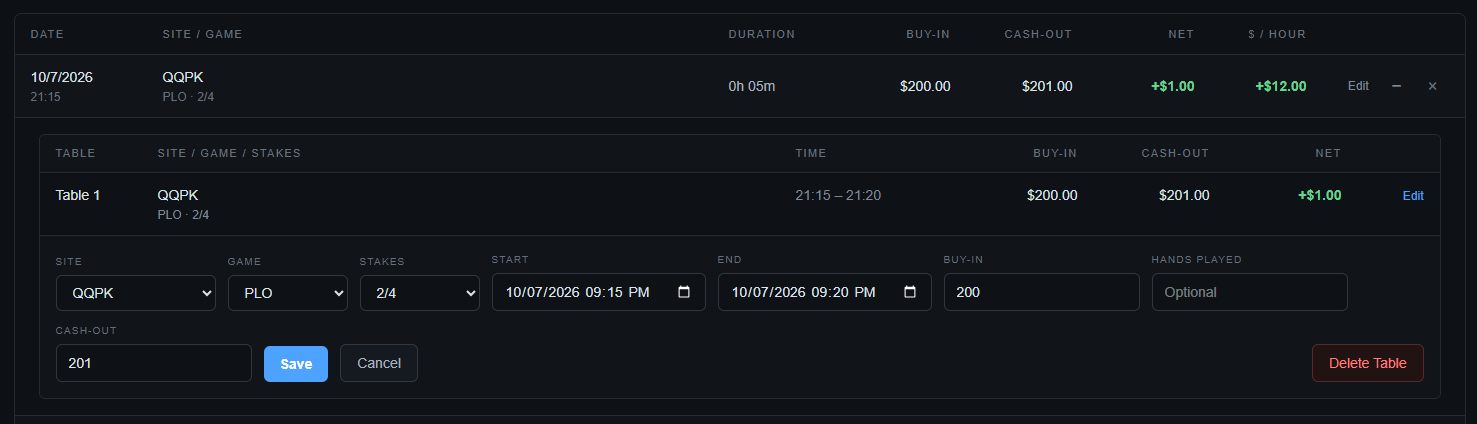
Select the + control on a session to see the individual tables that make up that session.
The expanded view shows each table's:
- Table number
- Site / game / stakes
- Time
- Buy-in
- Cash-out
- Net

This is useful when a session contains multiple tables or when you want to see how the session result was produced.
Editing Historical Sessions
Saved sessions and their individual tables can be edited from the Sessions page.
Use Edit on a table to correct its saved table information.
The table editor includes the site, game, stakes, start and end times, buy-in, cash-out, and hands played.
A session-level edit is also available for correcting saved session details.
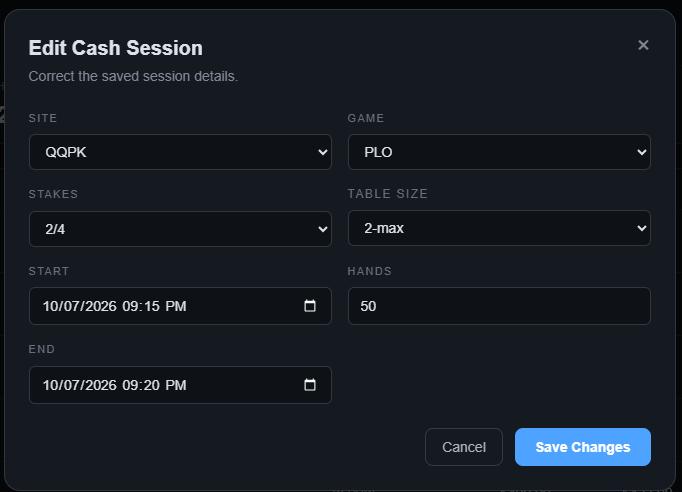
The session editor includes the site, game, stakes, table size, start time, hands, and end time.
This is particularly useful for older sessions whose recorded information needs to be corrected or completed.
Tip: Enter the correct table size when recording or editing a session. Table size is part of the information used by Cash Analytics, so older sessions with a missing table size may need to be edited before they can be included accurately in table-size-specific analysis.